How to embed a spin in your website
by GrantYou have a few different options when it comes to sharing your spins. One way you might want to share it is by placing it directly in your website.
☰
Contents
1
Open the share dialog
Find your spin in "My Spins" or open it in the editor, then click the "share" button.

2
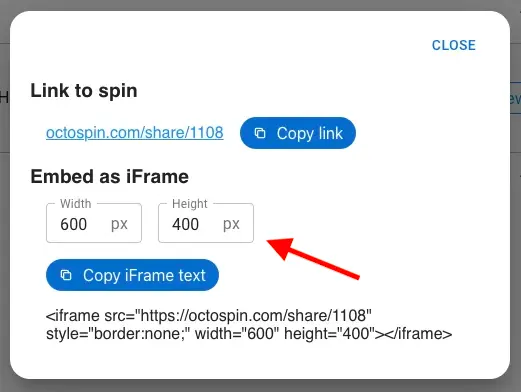
Configure iFrame
Adjust "width" and "height"
3
Copy iFrame html text
Now, click the "copy" button to copy the iFrame text to your clipboard.
4
Paste into your website's html
You'll need to ensure that you're editing your website's html.
Now, paste this iFrame where you would like it.
Here are a few samples from various ecommerce platforms. Please contact us if any of this information is no longer accurate.
-
Shopify
- Login to your Shopify account and navigate to the "Online Store" section.
- From the left menu, click on "Pages" or "Blog posts" depending on where you want to add the iframe.
- Click on the page or blog post where you want to add the iframe.
- Click on the "Show HTML" button in the rich text editor to switch to HTML mode.
- Paste the iframe code from step 3 in the desired location.
- Adjust the width and height attributes to set the size of the iframe further if needed.
- Click on the "Save" button to apply the changes. That's it! Your iframe should now be embedded in your Shopify store.
-
Squarespace
- Navigate to the page where you want to embed the spin and select edit.
- Click on the "Insert" button and select "Embed" from the dropdown menu.
- Paste the iframe code from step 3 in the desired location.
- Click on the "Apply" button to insert the iframe, then click on the "Save" button to apply the changes.